
If you receive an error message that is “Check for Updates Fails”, it could be the connectivity problem which does not allow the software to update the latest version, please follow these steps.
1.Verify that the internet connection is working. To test it open a browser and search for something to confirm the internet is functioning. This is a common problem.
2.Try closing and re-launching the mce application
3.Reboot the PC. Wait a while for the PC to fully boot then open the mce application. Then, re-try the “Check for Updates” function.
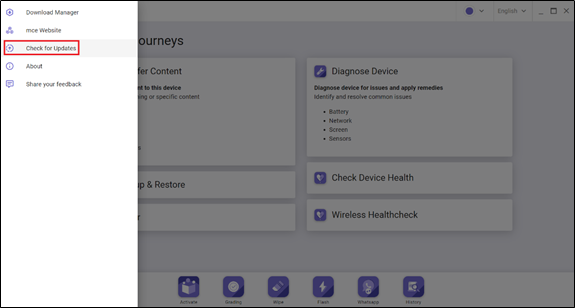
On the top left menu dropdown, select “Check for Updates” from the mce menu button.
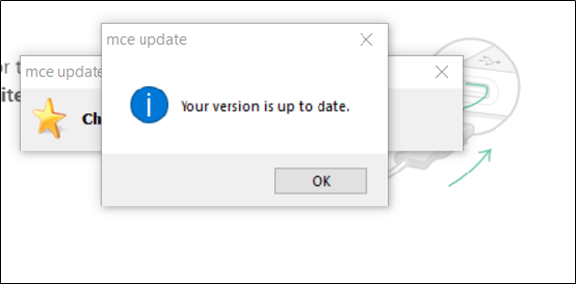
If the software is up-to-date, the following popup will appear.
Otherwise, an updated version will be automatically downloaded to your desktop PC’s taskbar and it is indicated by the following orange icon placed on the taskbar. This may take some time to download.

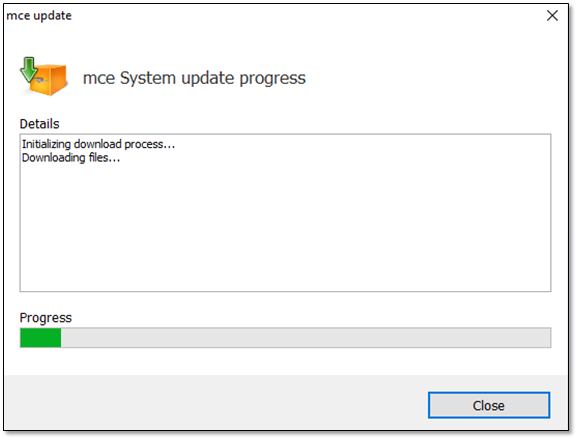
If you right-click on this orange box icon you can select details that will show you the progress bar of the download and install. As seen below.
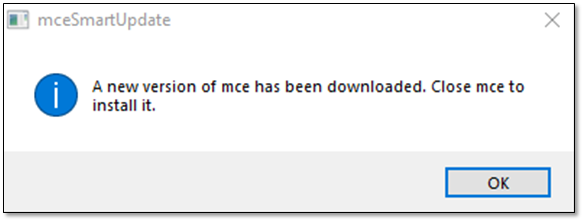
Then you will need to close mce when the message box below comes up.
Then the new install will start up as seen below.
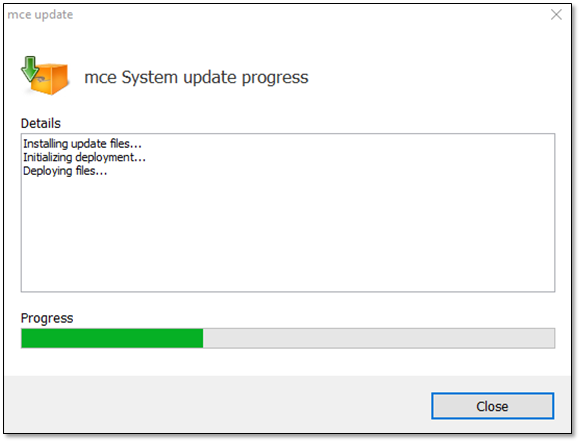
Once completed, reboot to fully install the new version.
Comments
0 comments
Please sign in to leave a comment.