
1. Is it happening with a specific phone?
If it is, please check whether the device is supported for Flashing, as illustrated below:
a. Locate the "LRM.xml" file at your "MCE-100" folder
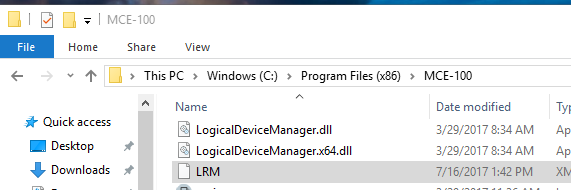
b. Drag the file to your internet browser
c. At the web window that's open search for the devices model you're want to Flash. Please note to enter the exact model and that the words should be separated by "_". If you're able to locate the model, this means that it's supported.
As illustrated at the example below iPhone 6 is supported here for Flashing.

2. If the device is supported, please make sure that the relevant ROM was downloaded.
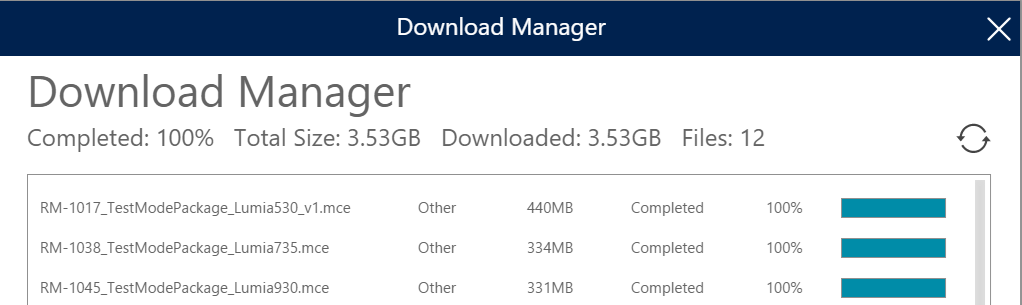
You can check it at the "LRM Download Status" at the software's menu. If the download status on 100% then the ROM was fully downloaded.
As illustrated at the example below the ROM for Lumia 735 was fully downloaded.
3. If the ROMs are not fully downloaded, please make sure that:
a. There is enough space on the computer`s hard disk
b. That the computer is not set to shut down / go to sleep when not in use. This is interrupting the download of the ROM files required for flashing.
How it's done?
Power Options in Windows should be set to 'never shut down', this will ensure that the computer will stay on at night and make progress with the ROMs download.
**Note: slow download rate is usually related to internet connectivity issues.
4. Cancel & Resync. Please click on this button.
This will be done through the 'LRM download manager' (more instructions on how to get there are at paragraph 2).
Comments
0 comments
Please sign in to leave a comment.